Some projects feel like work. Tato Salsa felt like a night out, and that is the highest compliment I can give a build.
I have known Tato for more than 15 years, since long before there was a studio. I was there cheering when Tato started teaching, and I have watched those first classes grow into the Tato Salsa family it is today. I am also an active social dancer, so this was never a client project in the usual sense. These are people I dance with. When something I built works, I see it on the dance floor. When something breaks, I hear about it on the dance floor too, usually between songs.
Somewhere along the way, "can you help me with this?" became a standing arrangement. In 2026 that arrangement turned into the most fun project I have taken on in years, and the one that stretched my skills the furthest.
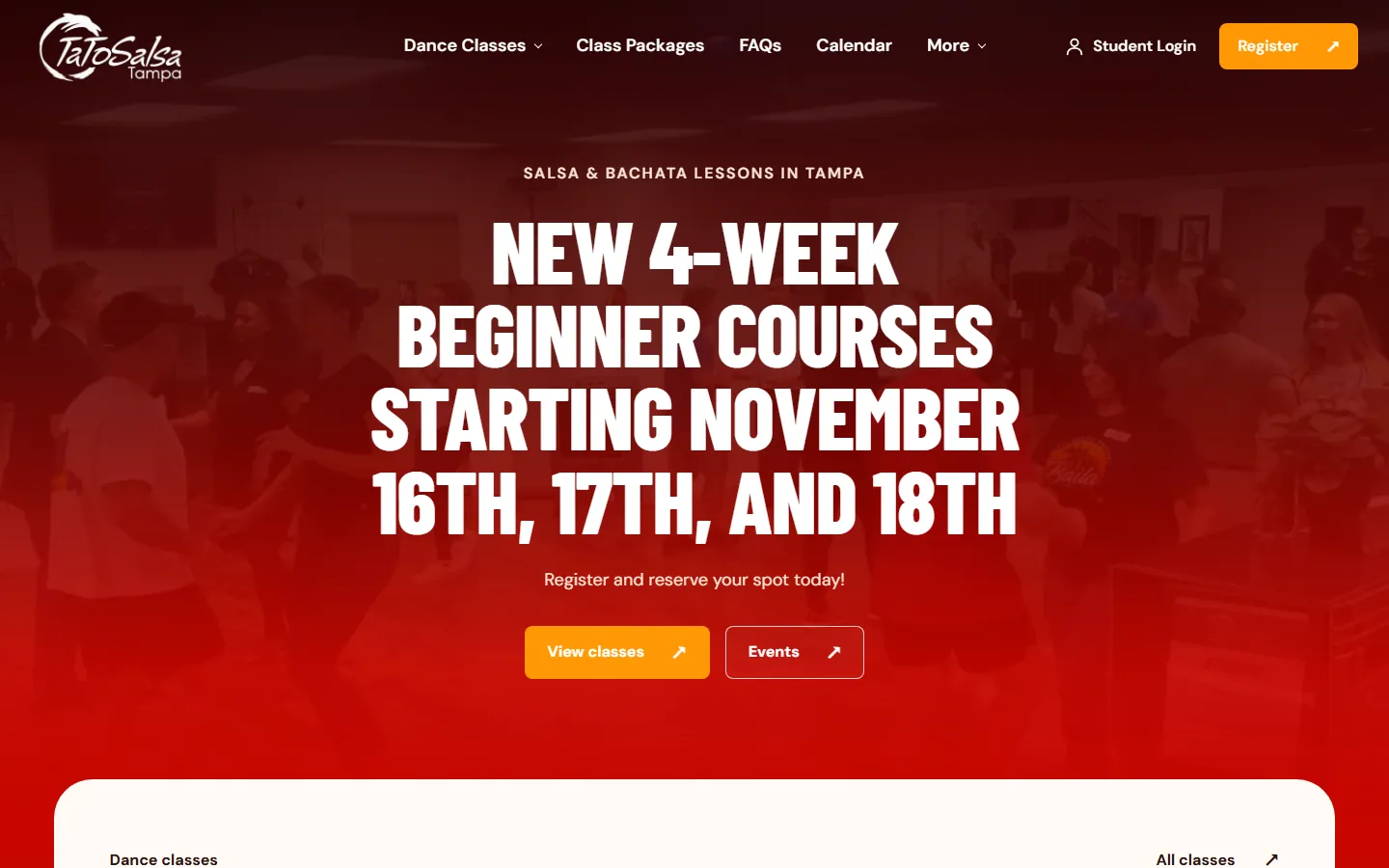
It started as a website rebuild. More than 300 commits later, Tato Salsa runs on a system I built from the ground up: a new website, online registration and payments, a front desk app for staff, a walk-up check-in station with a barcode scanner and a label printer, Apple Wallet cards, a student portal, and an app for iPhone and Android in both app stores. Almost 300 of those commits landed in the six weeks after the new site went live.
What made it so much fun was the range. One project took me across the web, payments, physical hardware, mobile apps and the app stores, and every piece of it gets used by real people on a real dance floor every week. Here is how it came together.
1. Why a Dance Studio Is the Perfect Playground
A dance studio looks simple from the outside: classes on a schedule, students who pay for them, music. Underneath, it has the same moving parts as any business with customers and a front door. Money changes hands. Packages have rules about how many classes they include and when they expire. Couples register together. Walk-ins pay at the desk. And at 7 PM there is a line of people who all want to get to the dance floor at the same time.
That mix is what made it such a good project. The feedback loop is days, not quarters. I could ship something on a Monday afternoon and watch students use it that night. When something was off, I heard about it from the people at the desk, in plain language, the same week.
It also helped that I already knew the room. I did not need user research to learn what the front desk looks like at 7 PM or how a beginner feels walking in for the first time. I have watched it happen for years.
2. Starting Over: From WordPress to a Hand-Built Site
The first commit, on May 4, 2026, moved the studio's WordPress site to plain, hand-built pages: thirteen pages, with the full URL structure kept intact so years of search rankings and bookmarks kept working. Old WordPress event links redirect to their new homes instead of breaking.
I have written before about WordPress bloat, and this was my chance to practice what I preach. The public site is HTML, CSS and vanilla JavaScript, with no framework and no build step. PHP 8.2 runs only where a server actually has to do something: registration, payments, the staff tools and the APIs. Fonts and images are served from the site itself, and the pages stay light, which matters because most people find a dance class on their phone.
The site is also built to be found. Pages carry structured data about the studio and its classes, and an llms.txt file describes the studio for AI assistants, so when someone asks a chatbot about salsa lessons in Tampa, the answer has something accurate to draw from.
3. Registration and Payments Built Around the Studio
Online registration is a short four-step flow. Salsa and Bachata are partner dances, so partner registration was never an afterthought: two people can register and pay together, and each one gets a punch card of their own.
Payments run through Stripe's embedded checkout, with Apple Pay and Google Pay verified on the domain and Cloudflare Turnstile keeping bots off the form. Once a payment clears, a background worker sends the confirmation email with a PDF receipt attached, listing both partners, the classes and the amount paid.
Behind the counter, staff have their own desk app. They can sign up a walk-in, find any student by name, see every package a student has bought and stamp the punch card. Student profiles link purchases made with the same name, email and phone, so a regular who has bought six packages over a year shows up as one person, not six.
4. The Part I Loved Most: Walk-Up Check-In
Checking in used to mean finding the student, deducting a class by hand and writing a name tag with a marker. With a line at the door, that adds up fast.
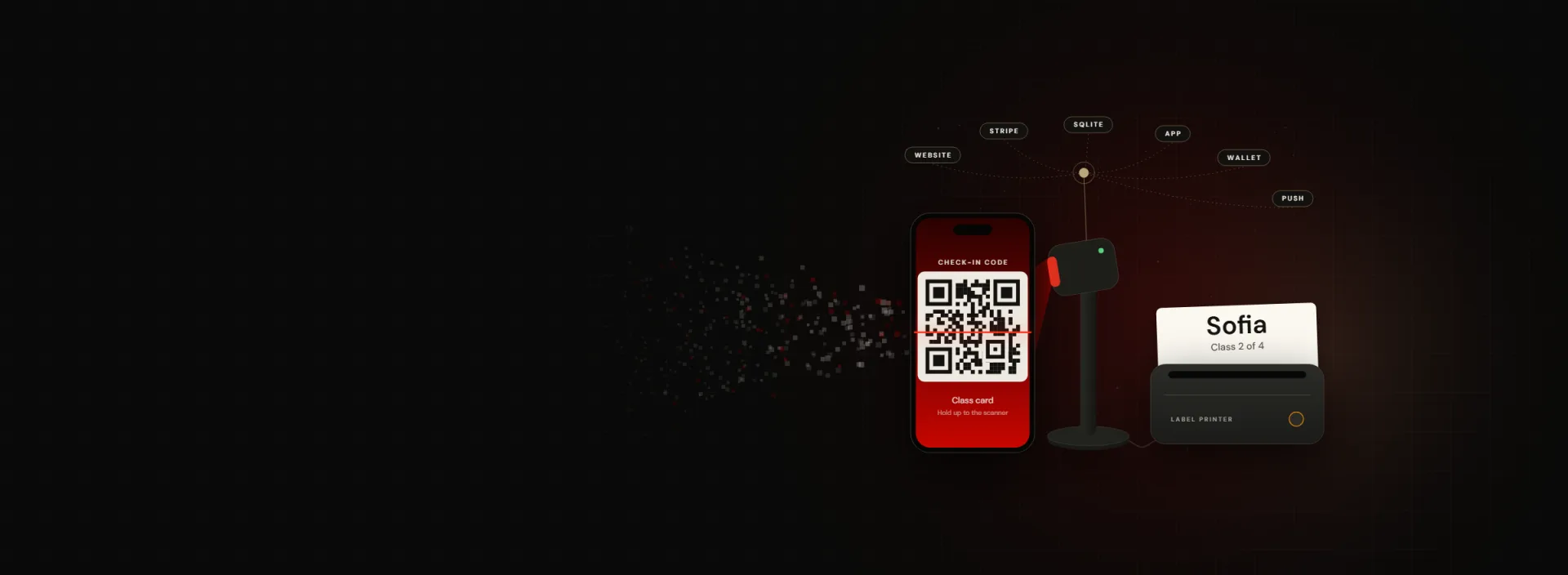
Now a student walks up and holds a phone in front of a scanner. A beat later the screen shows their name and how many classes they have left, and a label printer slides out a name tag to wear on the dance floor: their first name, as large as it fits, with a small line underneath that says something like "Class 2 of 4."
Name tags matter more in a dance class than almost anywhere else. Partners rotate every few minutes, and nobody wants to dance a whole eight-count with someone and still not know their name. The second line is a small touch I love: students see their progress, every class, right on their shirt.
The code carries nothing personal
Every punch card gets its own code: the letters TS followed by 32 characters built from 128 random bits. The QR code holds only that string. There is no name, email or order number inside it, so a screenshot of someone's code tells you nothing about them. The code is uppercase so the QR stays in its compact alphanumeric mode, and matching ignores case, so a Caps Lock key left on at the desk cannot break check-in. If a code ever gets out, staff replace it and the old one stops working.
The scanner is just a keyboard
This is my favorite piece of engineering in the whole project, because it is barely engineering at all. The scanner is an OBZ X80 hands-free stand scanner on a USB cable. In USB keyboard mode, it types whatever it reads, followed by Enter, into whatever has focus on the screen. No drivers, no SDK, no pairing. The check-in page listens for a code followed by Enter, and the hardware integration is done.
The studio's rules live in the software
The server does the thinking. It finds the punch card behind the code, checks the studio's rules, spends one class and logs the check-in. The owner's rule is one class per student per day across all of their packages, so a second scan the same night shows "Already checked in" instead of spending another class. Packages expire on schedule, counted from the purchase date. If money is still due, the screen says so before anything is spent.
All of it happens inside a single database transaction, so two scans a split second apart can never spend two classes. Every scan, its outcome and the classes left go into a check-in log.
A kiosk students run themselves
There are two ways in. The station at the front desk is for staff. The self check-in kiosk is for students: scan your code or pick your name, confirm it is you with a tap, and the label prints. Nothing is spent before that tap. The kiosk signs in with its own limited account that can look students up and check them in, and nothing else. Anything that needs a person, like a balance due or an expired package, shows "Please see the front desk," with no amounts on screen for the line behind you to read.
Getting the code into students' hands
A check-in system only works if students have their code with them, so the code goes everywhere: the confirmation email, the PDF receipt, the thank-you page after checkout, and an Apple Wallet card. Students who registered before the feature existed got a one-time email with their codes.
5. What the Real World Taught Me
Software on a screen does what you tell it. Hardware in a real room has opinions. A few of my favorite lessons:
- The label printer's service would not run on the studio's Mac. The plan was to print through DYMO's desktop software, which a web page talks to through a local web service. On the studio's M1 Mac that service failed with a secure connection error, even after a clean reinstall. So I dropped it. The page now lays out the label itself, sized to the 29 x 87 mm label, and prints it through Chrome, which can print without a dialog in its kiosk printing mode. Fewer moving parts, and it works on any computer that can print.
- The printer was not the printer I planned for. I designed around a DYMO LabelWriter 550, and the studio had a 450. It prints the same labels. It just cannot report how many are left on the roll, so the screen says "Unknown" instead of guessing.
- The scanner would not stop scanning. The first scanner was a handheld gun. When we moved to a hands-free stand scanner, it kept reading the same phone for as long as the student held it there, with the enthusiasm of a golden retriever who just found a tennis ball. The fix was a ten-second guard: the same code read again within ten seconds is ignored, and a different code always goes through.
- I locked myself out of my own admin. I tested the kiosk in my own browser, and its limited session followed me to the admin pages. My proudest moment? No. My most educational? Absolutely. Now any staff page that finds a kiosk session signs it out and asks for a real login.
- Name tags get read from across the room. The first label printed a full name, the date and the package. On an actual person, from a few feet away, the first name alone, printed big, works far better. The class line under it was resized twice after we held a printed label in our hands.
None of that shows up in a design document. You find it by standing at the front desk on a class night.
6. Apple Wallet: The Punch Card in Your Pocket
The Apple Wallet card was one of the most satisfying pieces to get right. A student taps "Add to Apple Wallet" and gets a card with the studio's look, their name, their package and the check-in QR code. It lives in Wallet next to their boarding passes and concert tickets, so there is no app to open and no email to dig for at the door.
Each card is built and signed on the server with the studio's Apple pass certificate, which I set up through Apple's APIs instead of clicking through web consoles. The server draws the student's name and package straight into the card's artwork, which gives far more control over the layout than Apple's standard text fields. Google Wallet is next on the list.
7. The App: Push, Practice Music and Two App Stores
The app started with a business goal. The studio was paying for a text message service to reach students, and push notifications cost nothing to send. The Tato Salsa app is a native app for iPhone and Android, built from one codebase with Expo and React Native. Studio admins send a push from the same admin they already use, right away or scheduled, to everyone or to students by interest.
An app that only sends notifications gets deleted, and Apple rejects apps that are little more than a wrapped website. So it had to earn its spot on the home screen: the class schedule, events with their flyers, an updates inbox, registration, and the hook, practice music. I created the practice tracks for students to dance to between classes. The audio lives in a private Cloudflare R2 bucket and streams through short-lived signed links, so the files are never sitting at a public address. Sponsor cards in the music player are sold directly, with no ad network involved.
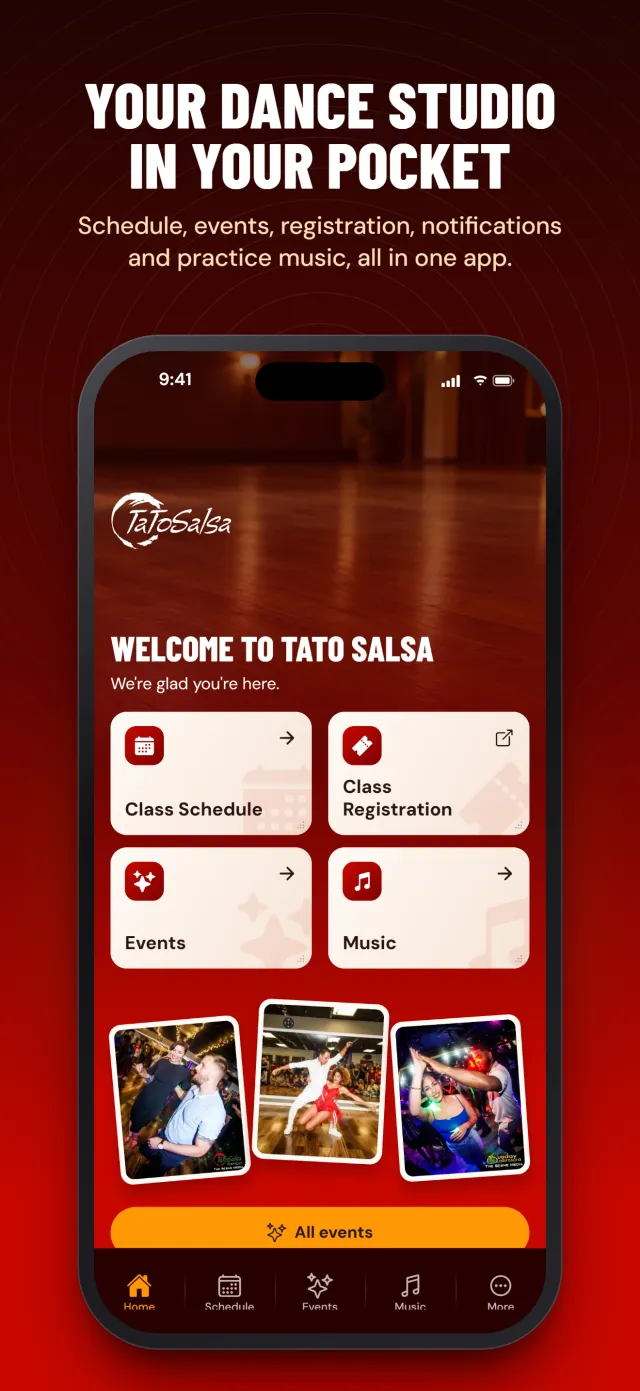
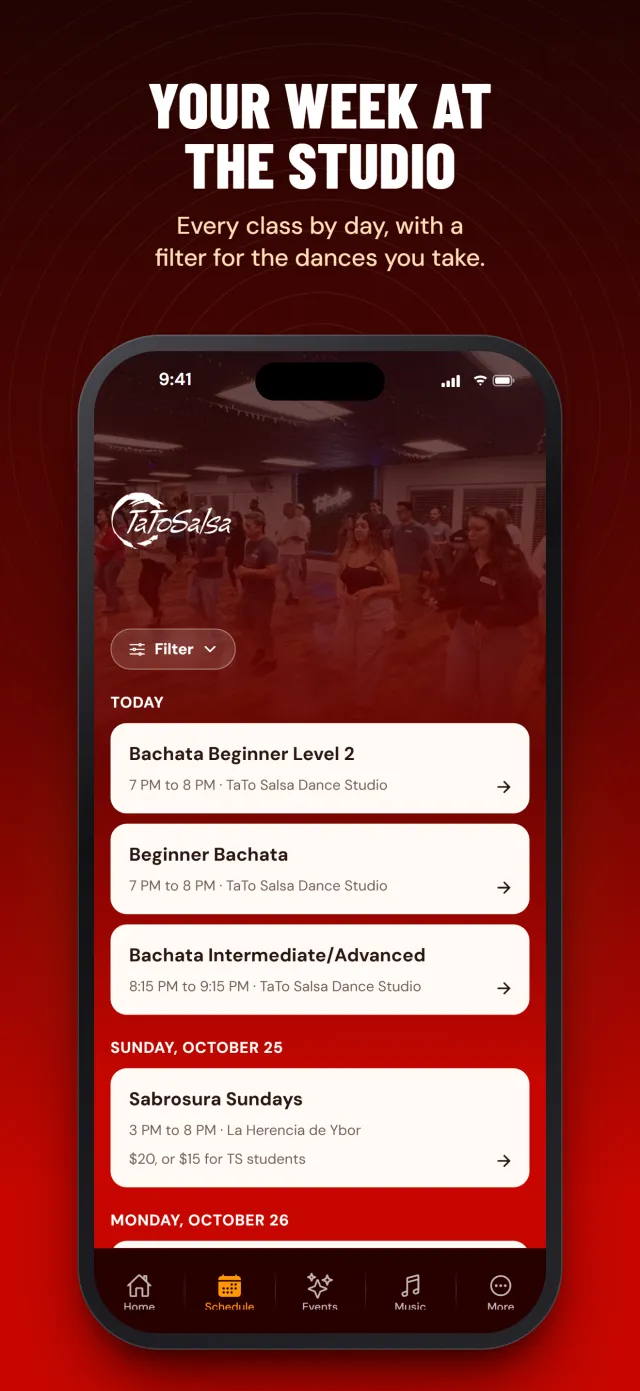
Shipping to the stores was its own adventure. I ran almost all of it through the App Store Connect and Google Play APIs: listings, screenshots, privacy answers, releases, even Google Play's data safety form. The first version went live in the App Store on October 31, 2026. Version 1.1.0, which adds student sign-in and renewing a class package right from the phone, went live on both stores on November 13. Most fixes do not wait for app review at all: over-the-air updates through Expo's EAS Update reach phones the next time the app opens.
8. A Real Student Portal
The newest layer is student accounts. Students sign in to their own portal with an email and password, see their classes and what is left on each card, update their profile, and renew or buy a package with a card saved at checkout. On a student's last class day, an email offers a renewal deal, so the moment they would normally drift away becomes the moment they sign up again.
9. The Timeline: Six Weeks That Changed Everything
This is the part I am proudest of as a builder. The website migration was quick work back in May. The real build started once the new site went live in October, and from there the pace kept climbing:
- May 4: First commit. Thirteen WordPress pages become hand-built HTML, with every URL preserved.
- October 8: The new tatosalsa.com goes live with Stripe checkout, first in test mode, then taking real payments.
- October 14: The app's backend goes live on the studio's server.
- October 21: Push notifications switch on.
- October 31: The app goes live in the App Store, and the QR check-in station goes live the same day.
- November 2: First test print on the studio's label printer, right at the front desk.
- November 4: The student self check-in kiosk goes live.
- November 10: The hands-free stand scanner arrives, labels switch to the big first name and "Class 2 of 4," and Apple Wallet cards go live.
- November 11: Check-in codes reach every student through email, receipts and the thank-you page, and the student portal opens.
- November 13: Version 1.1.0 of the app, with sign-in and renewals, goes live on the App Store and Google Play.
Look at the spacing. A native app, a hardware check-in system, wallet passes and a student portal all shipped in about six weeks, with nearly 300 commits between October 9 and the day I wrote this. That is what a solid foundation buys you. Once the data model, the payments and the release process were right, each new layer took days instead of months.
10. How It Is Built
- Website: HTML, CSS and vanilla JavaScript, with no framework and no build step.
- Backend: PHP 8.2 with private SQLite databases for registrations and studio data.
- Payments: Stripe embedded checkout with webhooks, Apple Pay and Google Pay, and saved cards for signed-in students.
- Email and documents: PHPMailer driven by a once-a-minute worker, PDF receipts, and QR codes generated on the server.
- Check-in hardware: an OBZ X80 stand scanner in USB keyboard mode and a DYMO LabelWriter 450, run from Chrome on the studio's Mac.
- Wallet: Apple Wallet passes built and signed on the server.
- App: Expo and React Native with Expo Router, push notifications, EAS Build and EAS Update, and Cloudflare R2 for music.
- Store operations: the App Store Connect API and the Google Play Developer API.
The process mattered as much as the stack. Every feature started as a written plan that lives in the repository, with the owner's decisions recorded next to the date they were made. Every release went out over SSH with a backup taken first, and nothing counted as done until I had checked it on the live site.
I also built it with AI coding agents as my pair programmers, which is a big part of how one person shipped this much, this fast. I have written about the misconceptions around AI assisted development, and this project is the clearest example I have of it done right: the agents write and test, and I make the calls and answer for the result.
11. Why It Was So Much Fun
Most projects live on one layer: a website, an app, an integration. This one ran from a web page to a payment processor to a database transaction to a USB scanner to a thermal label to a card in Apple Wallet to an app in two stores, and all of it had to work together on a Monday night with a line at the door.
As a builder, it showed me how far my own work has come. A few years ago, a project like this would have meant a team and a year. This time it meant one person, a clear plan, the right tools, and six very busy weeks.
But mostly, it is for people I care about. Tato and Cristina have spent years building a real community, and I got to build the tools that community runs on. Every time a student holds up a phone, hears the printer, and peels off a name tag that says "Class 3 of 4," the whole thing clicks. And then I see those same students out on the floor at the next social.
If your business still runs on paper cards, a spreadsheet and a marker, there is almost always a better way, and it does not have to be another monthly subscription. Take a look at what I build, or tell me about your front desk.
12. Frequently Asked Questions
How does the Tato Salsa QR check-in work?+
Each punch card has its own QR code, which students get in their confirmation email, on their PDF receipt, on the thank-you page and in Apple Wallet. At the studio they hold their phone in front of a hands-free stand scanner. The scanner types the code into the check-in page, the server checks the studio's rules and spends one class from the card in a single database transaction, and a label printer prints a name tag with the student's first name and a line such as "Class 2 of 4."
What hardware does the check-in station use?+
An OBZ X80 hands-free 1D/2D stand scanner on USB, running in keyboard mode so it needs no drivers, and a DYMO LabelWriter 450 printing 1 1/8 by 3 1/2 inch labels. Both connect to the studio's Mac, where the check-in page runs in Chrome and prints the label through the browser.
Does the QR code contain personal information?+
No. The code is the letters TS followed by 32 characters made from 128 random bits. It holds no name, email or order number, so a screenshot of a code reveals nothing about the student. Staff can replace a code at any time, and the old one stops working.
What technology is Tato Salsa built on?+
The website is plain HTML, CSS and JavaScript with PHP 8.2 and SQLite on the server. Payments run through Stripe with Apple Pay and Google Pay. The iPhone and Android app is built with Expo and React Native, streams practice music from Cloudflare R2 and receives over-the-air updates through EAS Update. Student passes are Apple Wallet cards signed on the server.